ADB Device Manager Documentation

Complete feature reference for ADB Device Manager. Features work in two modes: ADB Mode (requires USB debugging) and APP Mode (requires companion app). Some features support both modes for flexibility.

Get Started with Installation Guide
ADB Requires USB Debugging
APP Requires Companion App
ADB + APP Works with Both
Desktop APP For Desktop functionality

Device Projection & Interactive Control

Mirror your Android screen, stream audio, and control your device directly from your Desktop PC with low-latency performance.

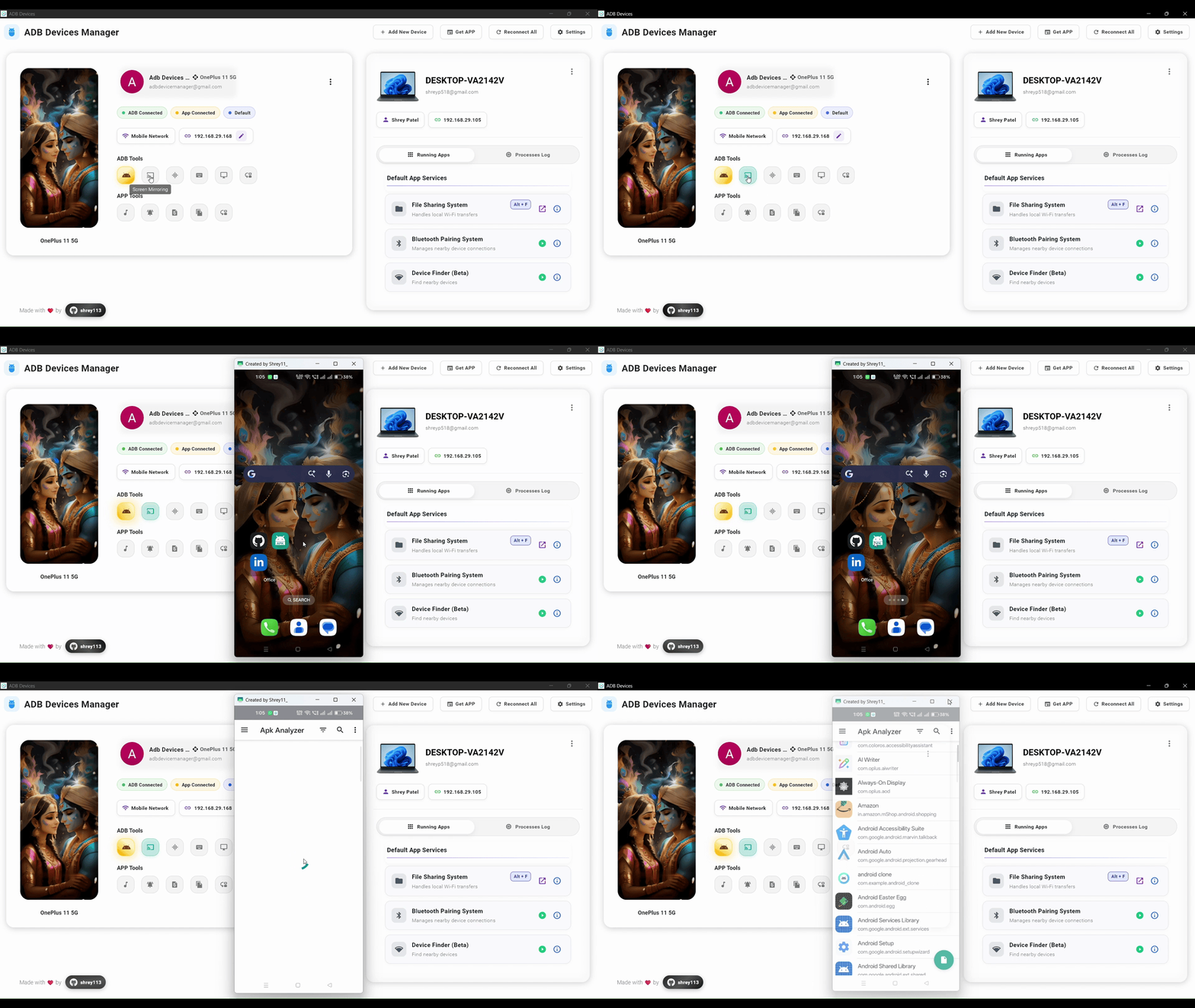
Screen Mirroring

ADB Alt + S

Mirror your Android screen onto Desktop using low-latency scrcpy with full mouse and keyboard control. Perfect for presentations, demos, and remote device management.

Screen Mirroring Feature

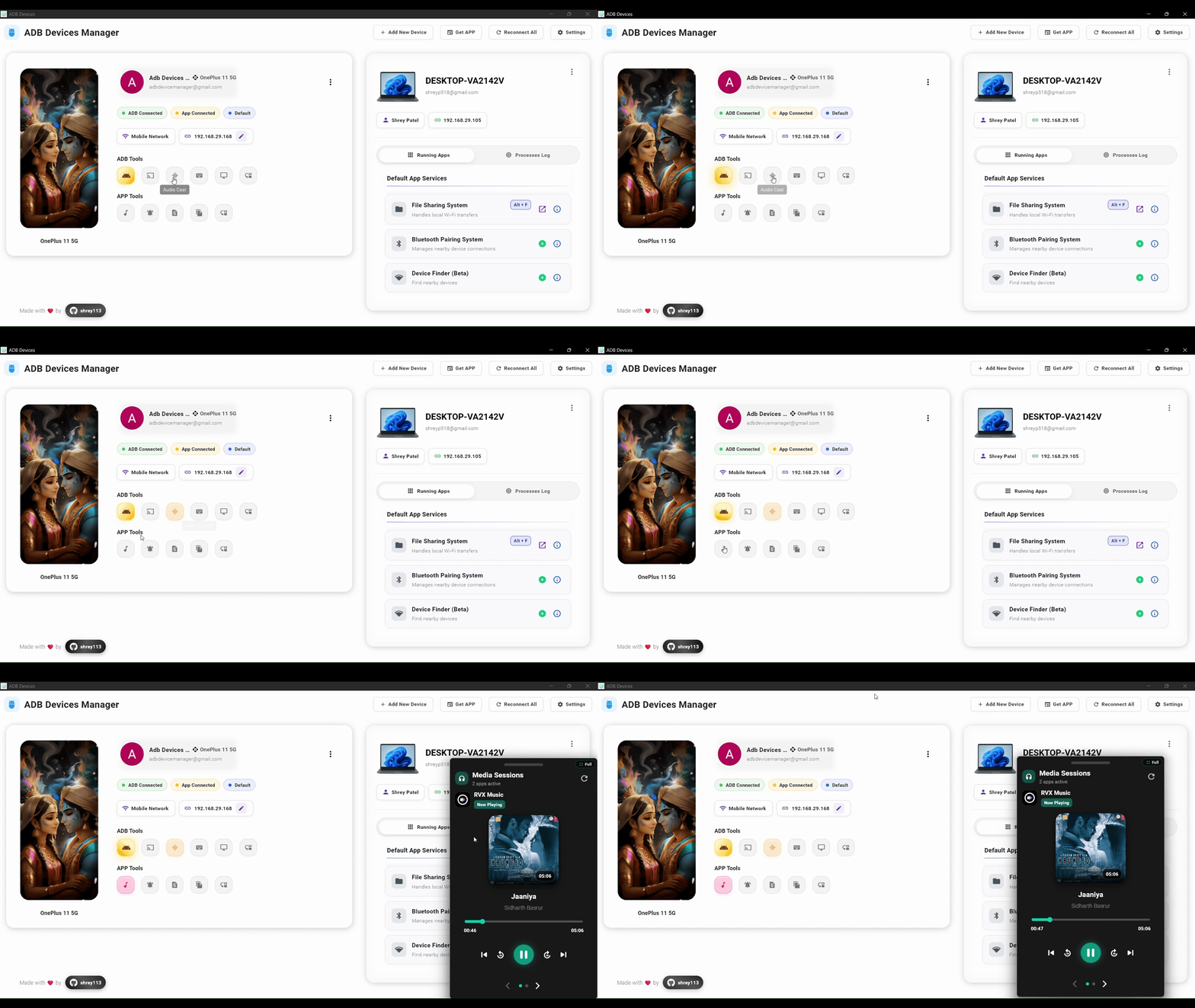
Audio Mirroring

ADB Alt + A

Stream device audio directly to Desktop in real time. Listen to music, app sounds, or any audio from your Android device through your PC speakers.

Audio Mirroring Feature

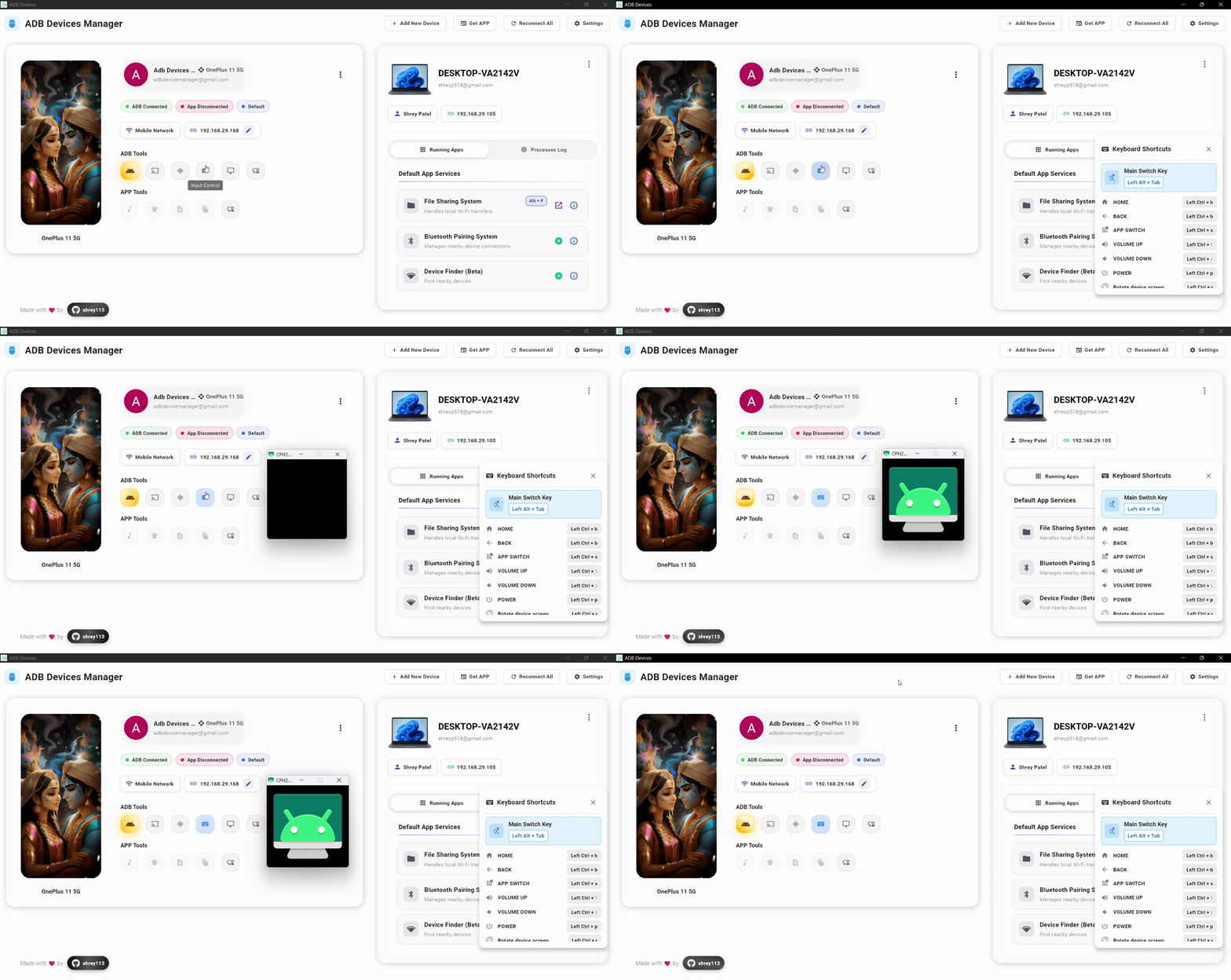
Input Control

ADB Alt + I

Use your PC keyboard and mouse to control your Android device. Type messages, navigate apps, and interact with your device using familiar desktop peripherals.

Input Control Feature

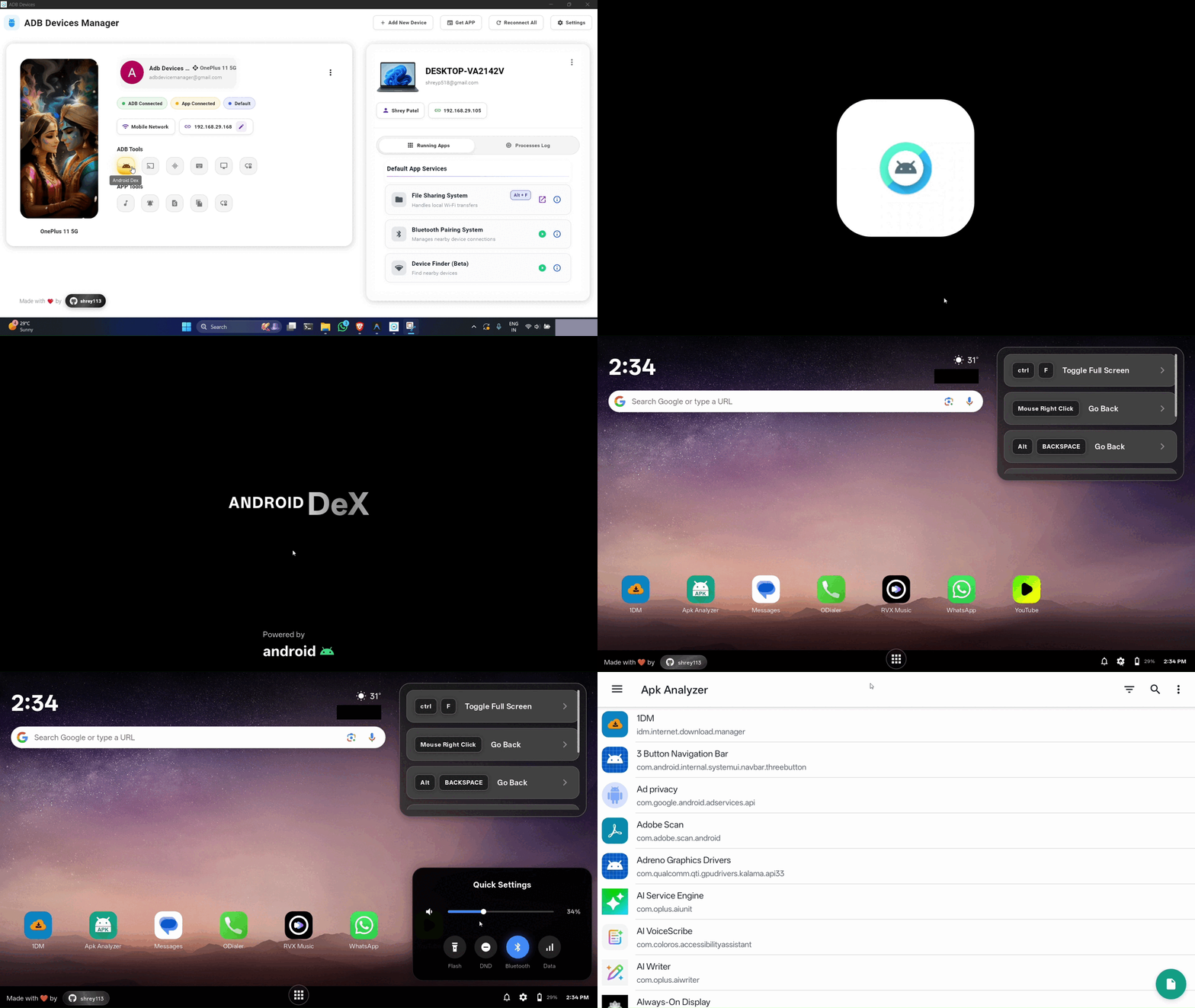
Android Dex

ADB Alt + Shift + D

A desktop-style Android environment similar to Samsung DeX. Transform your phone into a full desktop experience with multi-window support, virtual displays (1080p-4K), and three performance modes (60-120 FPS).

Android Dex Feature

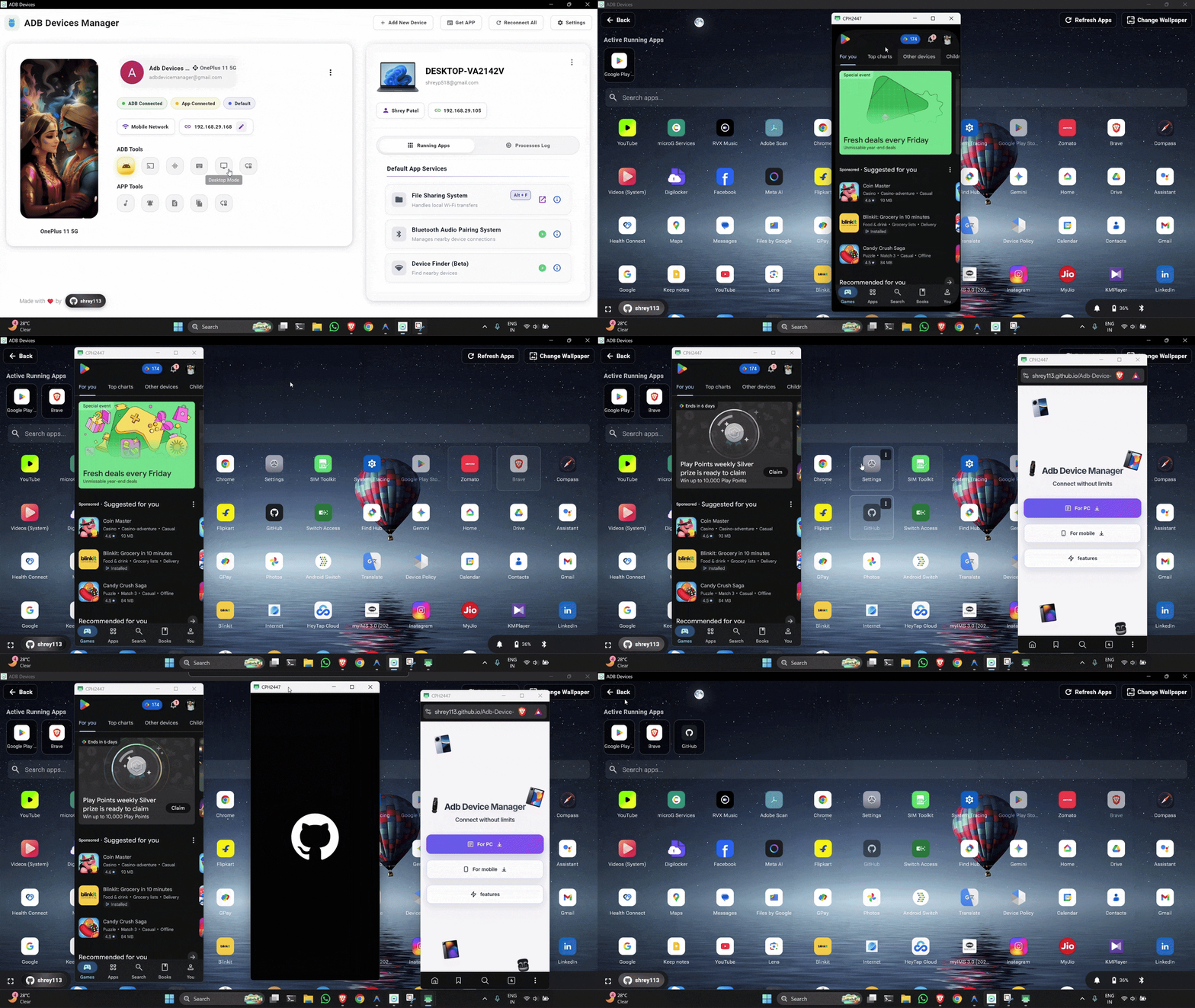
Desktop Mode (Multi-App Running)

ADB Alt + D

Run multiple Android apps at once with independent audio channels. Each app window runs separately, allowing true multitasking on your desktop.

Desktop Mode Multi-App

Real-Time Companion Services

Features powered by the companion app for real-time synchronization and advanced functionality over Wi-Fi.

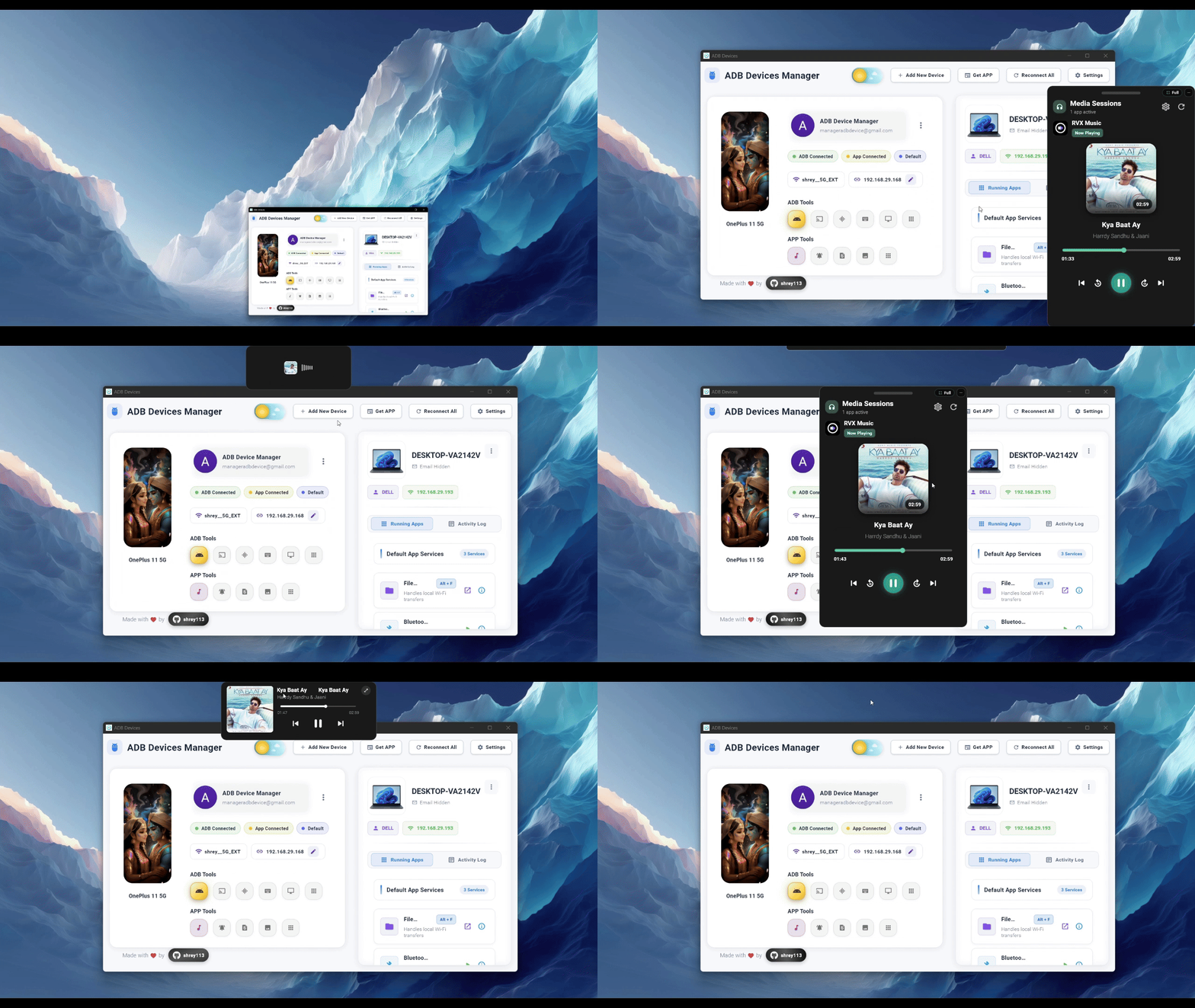
Music Control

APP Alt + M

Control media playback with album art and track info. Play, pause, skip tracks, and adjust volume directly from your Desktop.

Music Control Feature

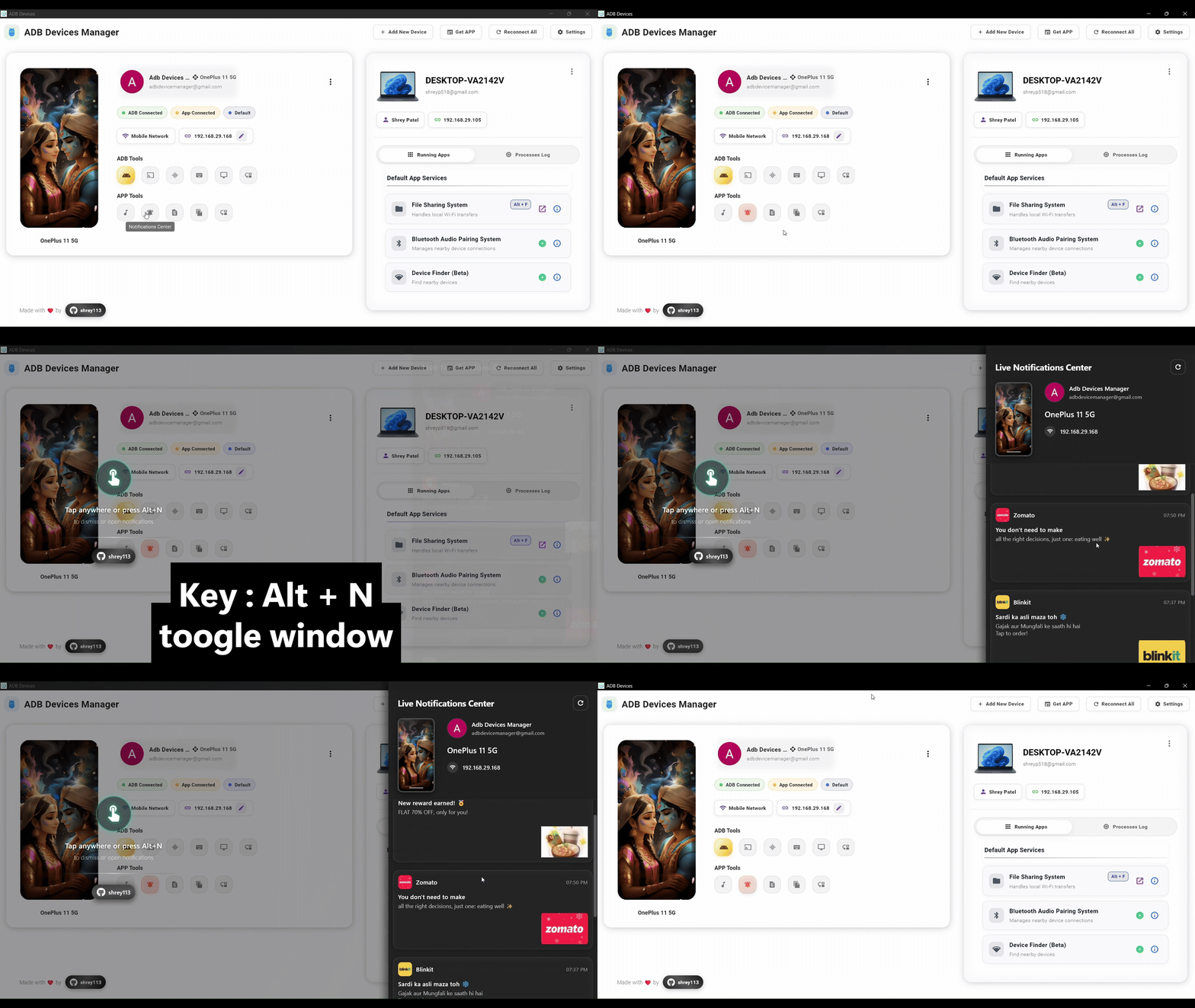
Notification Center

APP Alt + N

Receive and manage notifications from Android in real time. View all your phone notifications on your PC, reply to messages, and dismiss alerts.

Notification Center Feature

Device Files

APP

Transfer files quickly from Desktop to Android over local Wi-Fi. Drag and drop files to send them to your phone without cables or complicated setup.

Core Device Operations & Utilities

Essential device management features including app installation, camera access, contacts, call history, and SMS management.

App Installer (APK Install)

ADB

Install APK files directly from your PC. Drag and drop APK files or browse to install apps on your Android device without transferring files manually.

App Installer

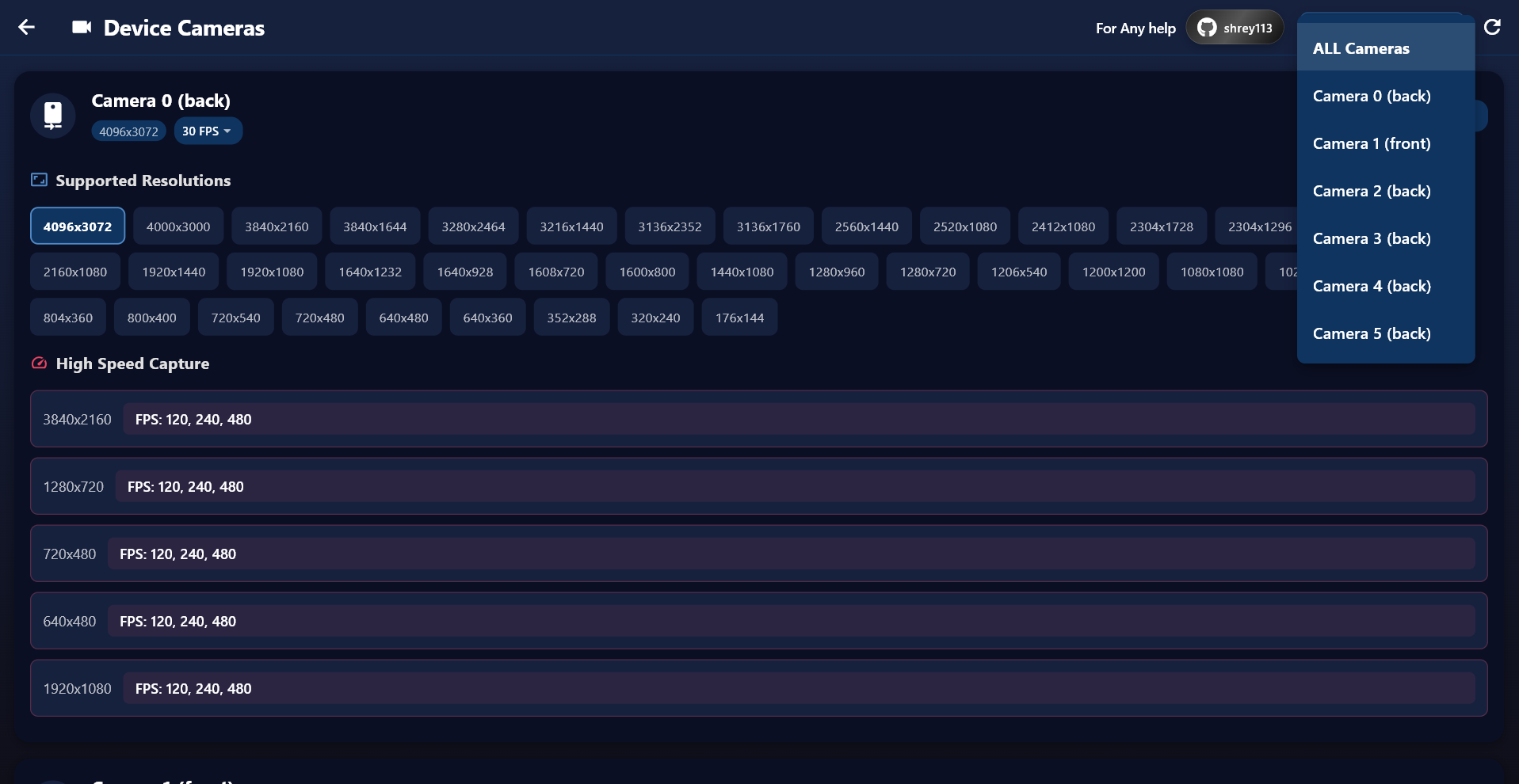
Camera View

ADB

View the Android camera feed on Desktop. Use your phone as a webcam, security camera, or for any purpose requiring remote camera access.

Camera View Feature

Contacts

ADB + APP

ADB extracts system-level contacts from your device. APP mode loads them faster with a rich UI. View, search, and manage your contacts from your PC.

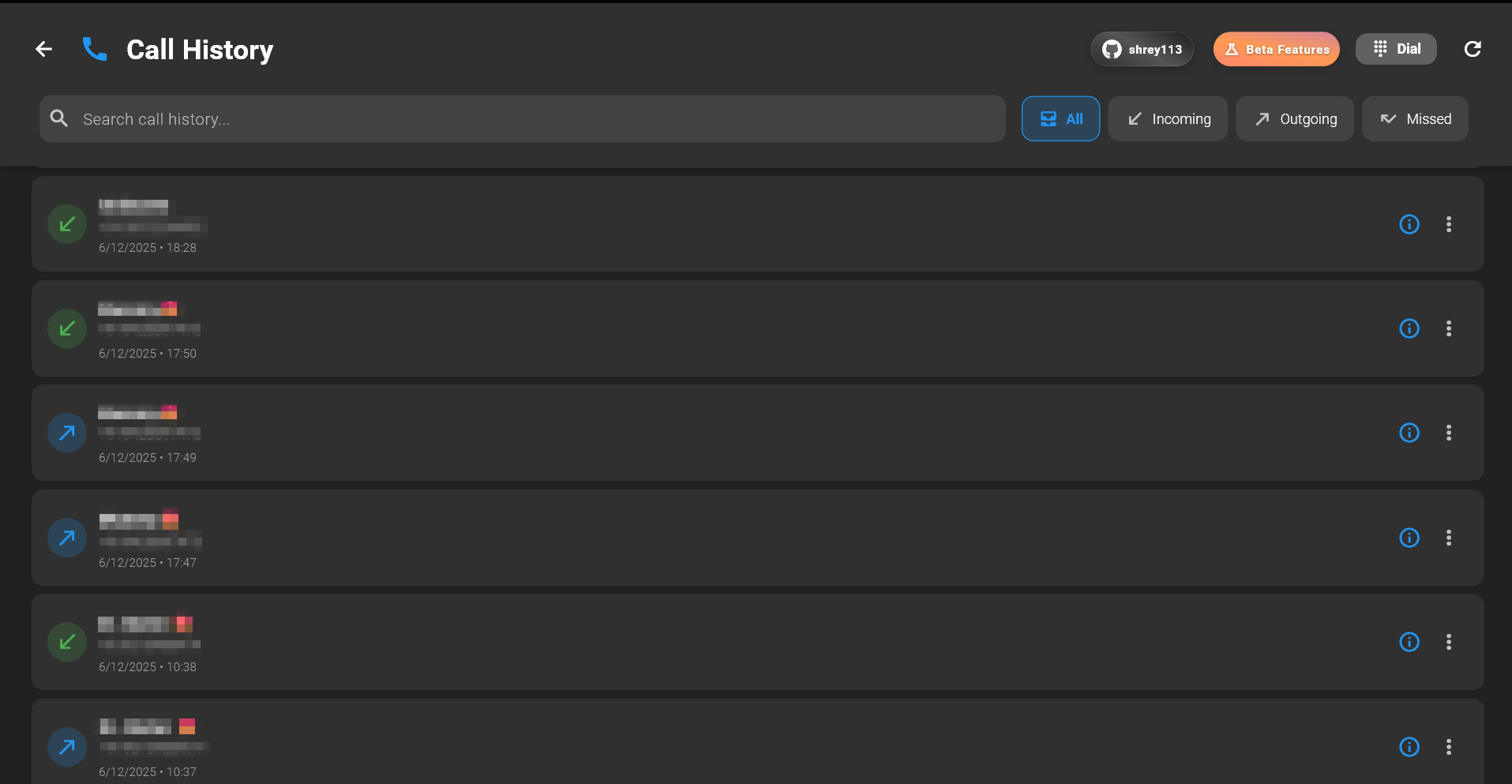
Call History

ADB + APP

Retrieve and view call logs efficiently. ADB pulls call logs from your device, while APP mode provides instant API-based results with a polished interface.

Call History

SMS Messages

ADB + APP

ADB extracts SMS messages from your device. APP mode shows conversations in real time with a messaging-style interface for easy browsing.

Desktop Integration Services

Deep integration features designed specifically for Desktop users, enabling seamless connectivity and file sharing between your Android device and PC.

File Sharing System

Desktop APP

Handles all file transfers between the app and the Desktop software. This system includes a built-in browser-based interface that allows users without the mobile app to transfer files easily. By scanning a QR code, users can open a secure web link to upload or download files directly over the local network.

File Sharing System

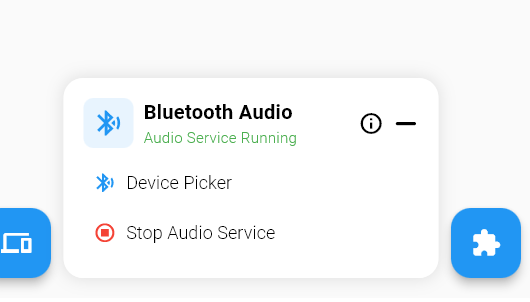
Bluetooth Pairing System

Desktop APP

Enables wireless audio streaming from any Android device to Desktop via Bluetooth. Your PC functions as an audio receiver, allowing your phone to stream media, calls, and notification sounds directly to the desktop.

Bluetooth Pairing System

Known Limitations

We believe in transparency. Here are the current limitations you should be aware of.

Android 14+ Background Restrictions

Android 14 and newer versions impose stricter background process limitations. Sideloaded apps may require manual permission grants via "Allow restricted settings". Some real-time features may be affected when the companion app is in background.

Audio Mirroring Delay

Audio mirroring may have a slight delay (50-200ms) especially over Wi-Fi. This is inherent to the streaming process. For synchronization-critical tasks, use USB connection which provides lower latency.

SMS Access Varies by Brand

Some Android manufacturers (especially Xiaomi MIUI, Samsung One UI) restrict SMS access to system apps. ADB extraction works on most devices, but APP Mode SMS sync may be limited on certain brands.

Multi-Window Behavior

Multi-window display behavior varies significantly between Android versions and OEM implementations. Split-screen and freeform modes may not be supported on all devices. Best experience is on Android 12+.

Wi-Fi Stability

Wireless connections depend on your network quality. Unstable Wi-Fi, router issues, or network congestion can cause disconnections. For the most stable experience, use USB connection or ensure a strong Wi-Fi signal.

Notification Actions Limited

While you can view and dismiss notifications, interactive notification actions (like "Reply" or "Mark as read") may not work on all apps due to Android security restrictions on third-party notification listeners.

Hardware Codec Support

Screen mirroring uses hardware video encoding. Some older devices or devices with limited codec support may experience reduced frame rates or quality. scrcpy falls back to software encoding when needed.

Security & Privacy

Your data stays with you. Here's how we protect your privacy.

100% Local Storage

All your data stays on your devices. We never upload contacts, messages, notifications, or any personal information to external servers.

No Cloud Required

The app works entirely over your local network (LAN/Wi-Fi). There's no cloud service, no account creation, and no data harvesting.

Direct Device-to-PC

Communication happens directly between your Android device and Desktop PC using TCP/WebSocket over your local network.

Why We Need These Permissions

Notification Access To sync and show your phone notifications on your PC.
Phone & Call Controls Lets the app detect incoming calls, show caller info, and allow call answer/decline actions from the PC.
Contacts Access Shows your saved contacts for call logs, SMS display, and communication features.
SMS Access To view, send, and sync text messages between your phone and Desktop.
Storage Access Enables fast file transfer between your Android device and Desktop.
Manage All Files (Android 11+) Needed for full file-explorer functionality and unrestricted media access.
Camera Access For QR code pairing and optional remote camera streaming.
Media Control Allows Desktop to control your phone’s music playback.
Wallpaper Access To fetch or set wallpapers during personalization features.
Audio Recording Required for features like screen/audio streaming and voice-related tools.
Screen Casting Used for screen sharing, screen mirroring, and display capture.
Local Network Discovery Helps your phone auto-detect the Desktop app on the same WiFi.
Auto-Start on Boot Ensures the app reconnects to Desktop automatically after restarting the phone.
Battery Optimization Ignore Prevents the app from being killed in the background for stable connection.
Our Privacy Commitment

We will never sell, share, or monetize your personal data. ADB Device Manager is designed as a productivity tool that respects your privacy completely.

Frequently Asked Questions

Quick answers to the most common questions.

Why does audio sometimes lag during mirroring?

Audio streaming involves encoding on the phone, transmitting over USB/Wi-Fi, and decoding on Desktop. Network latency, encoding overhead, and buffer settings all contribute to delay. Try using USB for lower latency, or adjust the audio buffer in settings if available.

Why does my wireless connection keep disconnecting?

Wireless ADB connections can drop due to: unstable Wi-Fi, phone going to sleep, battery optimization killing the app, or network changes. Disable battery optimization for the companion app and keep your phone's "Stay awake while charging" option enabled in Developer Options.

Why aren't my notifications showing on PC?

Check that Notification Access permission is granted in Android Settings → Apps → Special Access → Notification Access. On Android 14+, you may also need to "Allow restricted settings" for the companion app. Ensure the app is not being killed by battery optimization.

Why does APP Mode require so many permissions?

App Mode provides deep integration: notifications require Notification Listener, automation features use Accessibility Service, file transfer needs Storage access, etc. Each permission directly maps to a feature. We only request what's needed for functionality — no data is collected or sent anywhere.

Why does scrcpy ask for confirmation on my phone?

This is an Android security feature. When ADB tries to access screen capture or audio, Android shows a permission dialog. This is normal and expected — simply accept to allow mirroring. The prompt may appear each time you start mirroring on some devices.

Can I use this app without the companion Android app?

Yes! ADB Mode features (screen mirroring, audio, APK install, camera) work with just USB Debugging enabled — no companion app needed. The companion app is only required for APP Mode features like notifications, media control, and real-time file sync.

Is my data safe? Where does it go?

All data stays completely local. Communication happens directly between your Android device and your Desktop PC over your local network or USB. There is no cloud, no external servers, and no data collection. See our Security & Privacy section for details.