Choose Your Setup
Select your platform and mode to get started with App-Scrcpy in just a few minutes.
Open the App & Tap Start
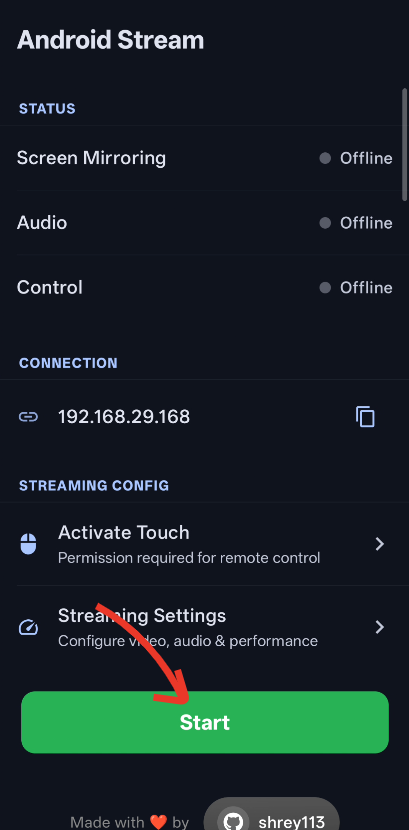
Open Android Stream on your phone. You'll see your IP address under Connection and all statuses showing Offline. Tap the big green Start button at the bottom.
Allow Screen Casting
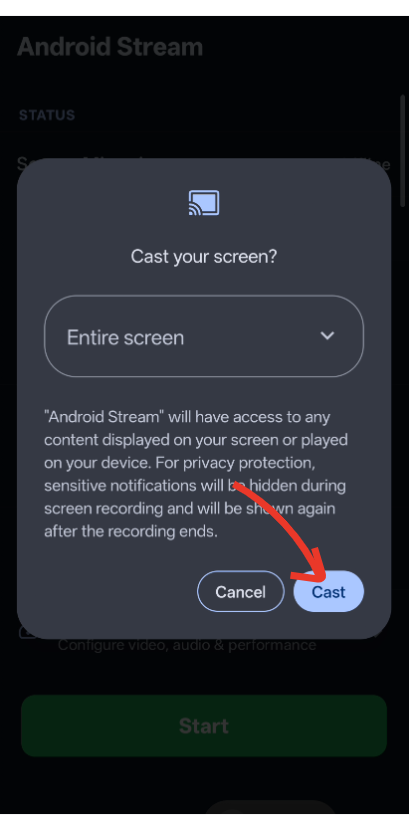
Android will show a "Cast your screen?" permission dialog. Keep the selection as Entire screen and tap Cast to grant the screen capture permission.
Streaming is Live!
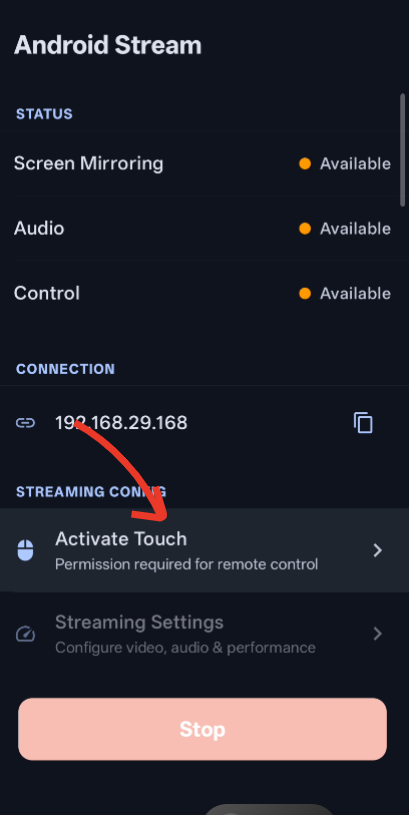
All three status indicators — Screen Mirroring, Audio, and Control — now show Available. Your PC can now mirror the screen. Next, enable touch control.
Grant Touch Permission
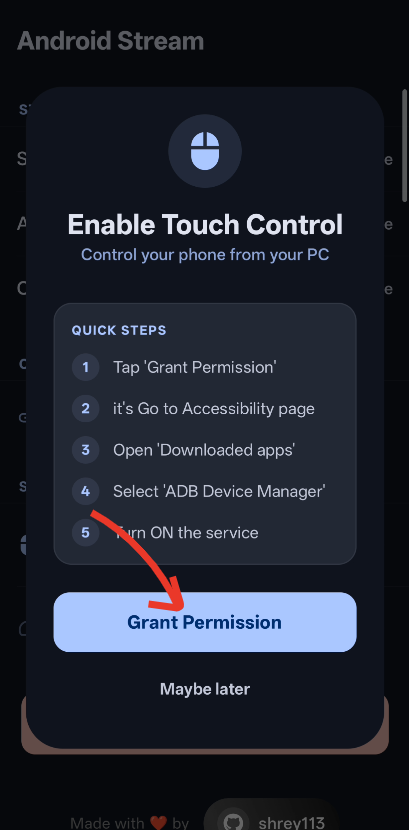
The Enable Touch Control sheet will appear. This allows you to control your phone from your PC. Tap Grant Permission — you'll be taken to Accessibility settings.
Enable the Service
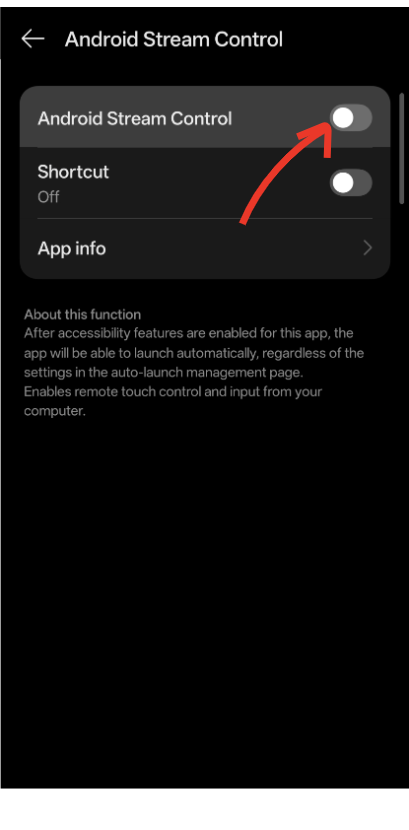
In the Android Stream Control accessibility page, toggle the switch ON at the top. Confirm any system prompt. You can now control your phone remotely from your PC!
Download the ZIP File
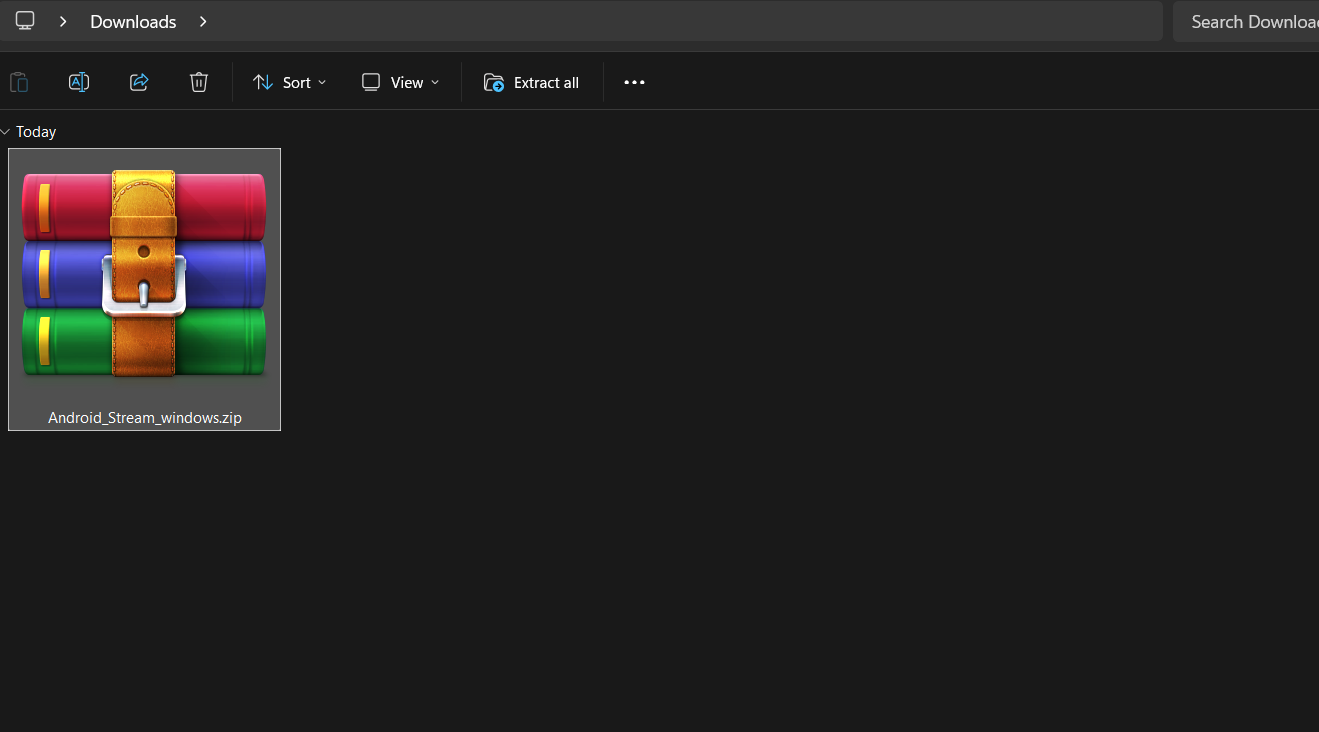
Download Android_Stream_windows_cmd.zip from the releases page. You'll find the file in your Downloads folder.
Extract & Find the EXE
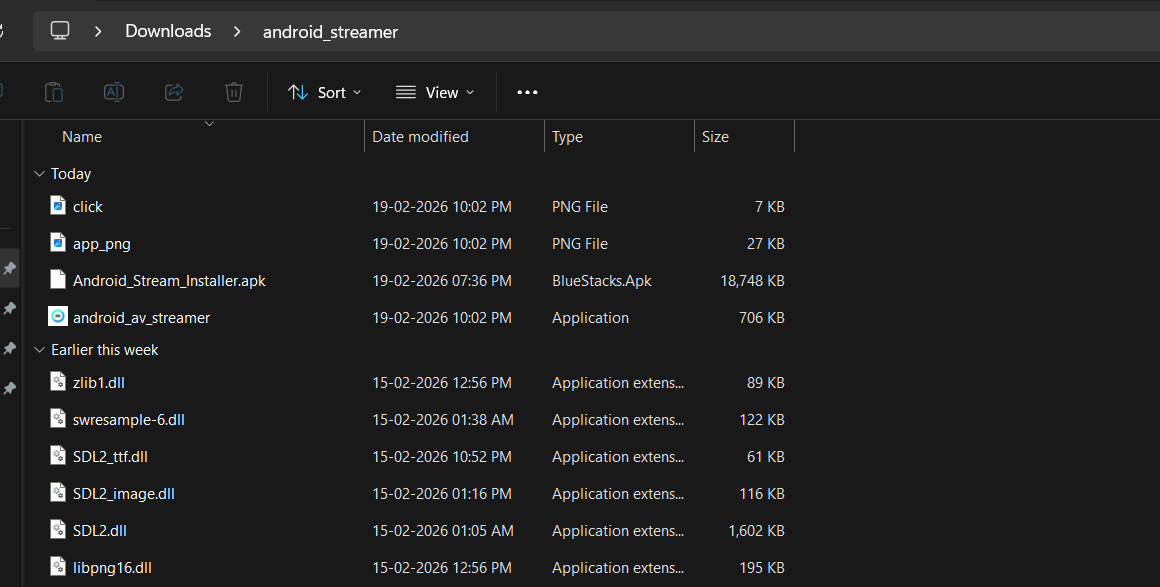
Right-click the ZIP and select Extract All. Open the extracted android_streamer folder — you'll see android_av_streamer.exe along with the required DLL files.
Open CMD in the Folder
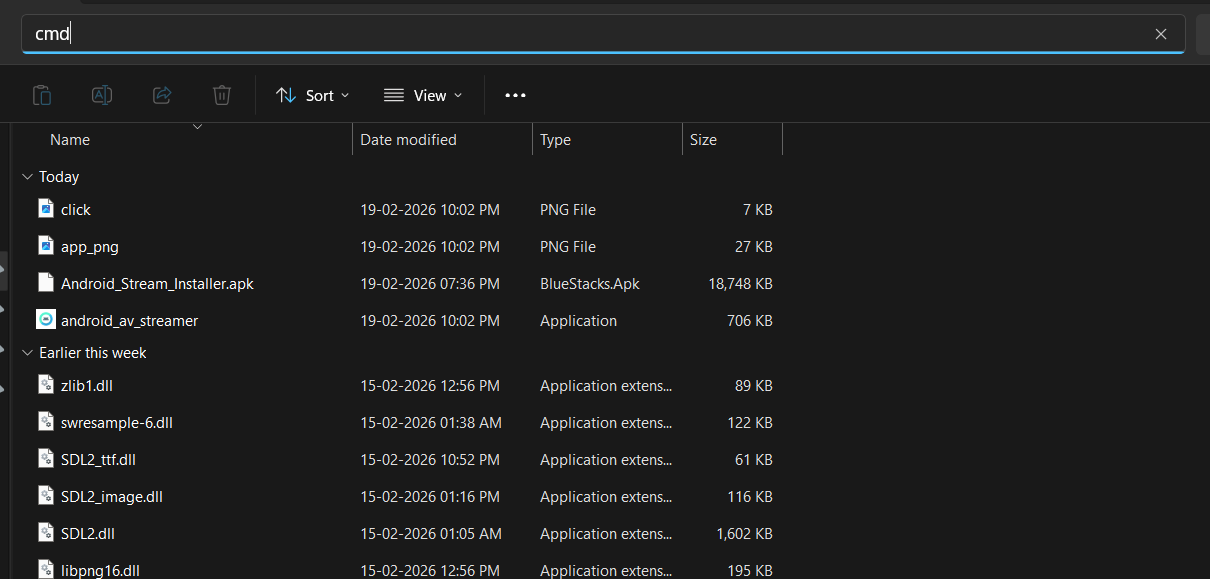
Click the address bar at the top of File Explorer, type cmd and press Enter. This opens a Command Prompt directly inside the extracted folder.
Get IP & Run the Command
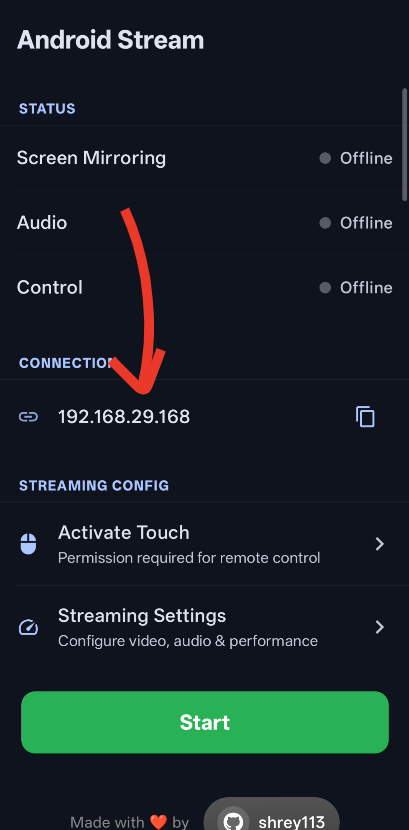
Open the Android Stream app on your phone and copy the IP address shown under Connection. Then run the command below in CMD, replacing the IP with yours.
android_av_streamer.exe 192.168.29.168 --auto-start
Download the ZIP File
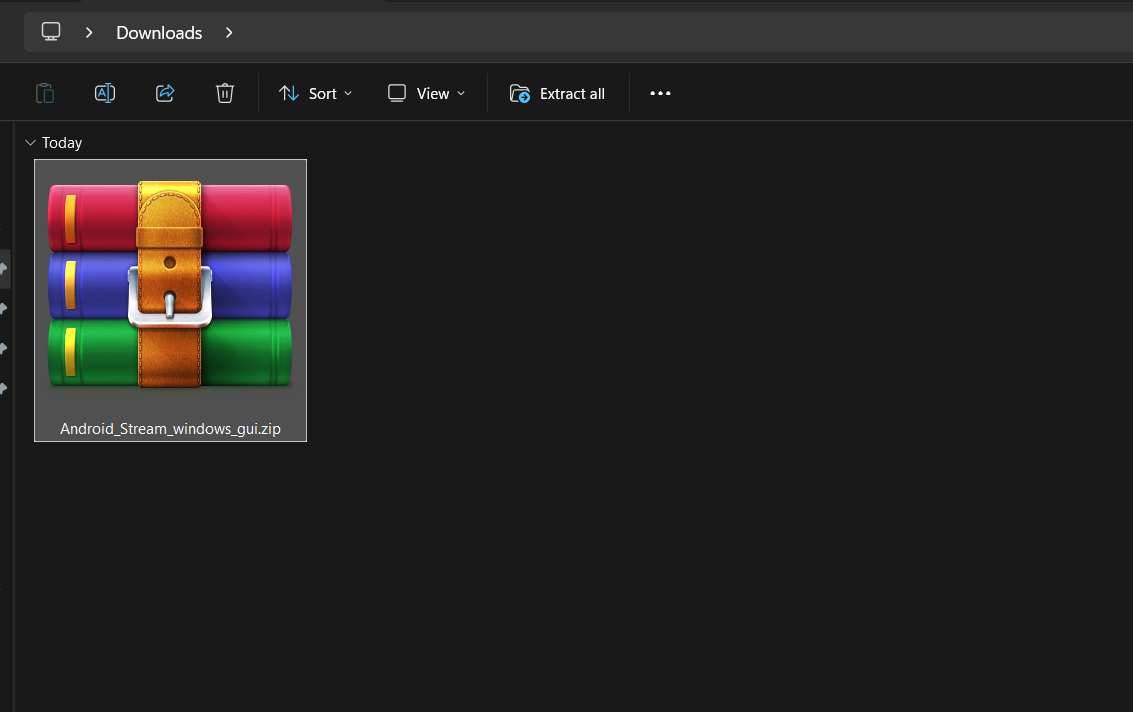
Download Android_Stream_windows_gui.zip from the releases page. You'll find the file in your Downloads folder.
Extract & Find the App
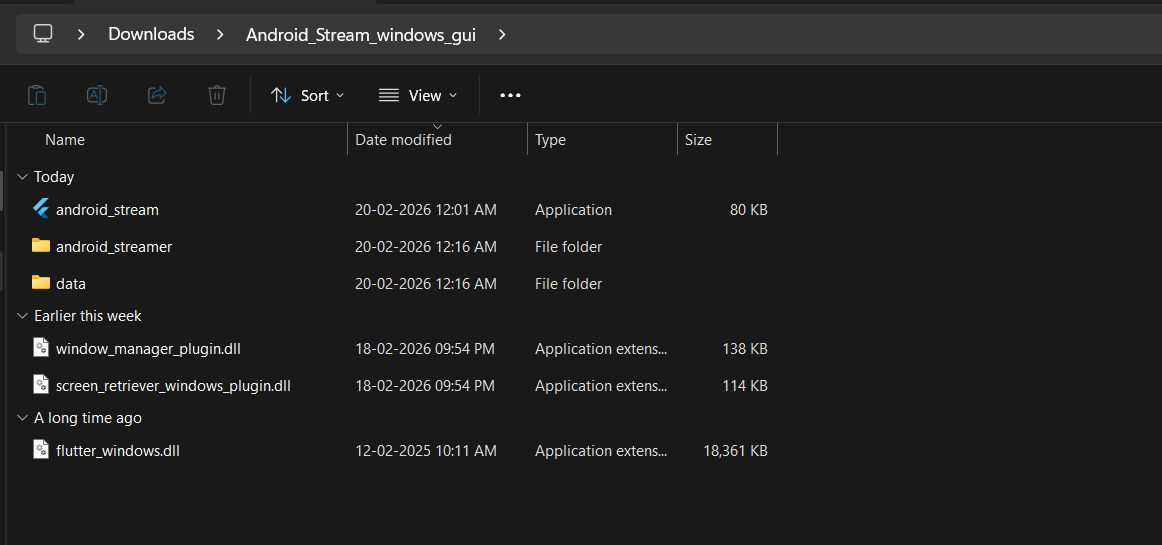
Right-click the ZIP and select Extract All. Open the extracted Android_Stream_windows_gui folder — you'll see android_stream.exe, the android_streamer folder, and a data folder.
Launch the App
Double-click android_stream.exe to launch the GUI. The Android Streamer window will open with an Input Address field and a Start Session button.
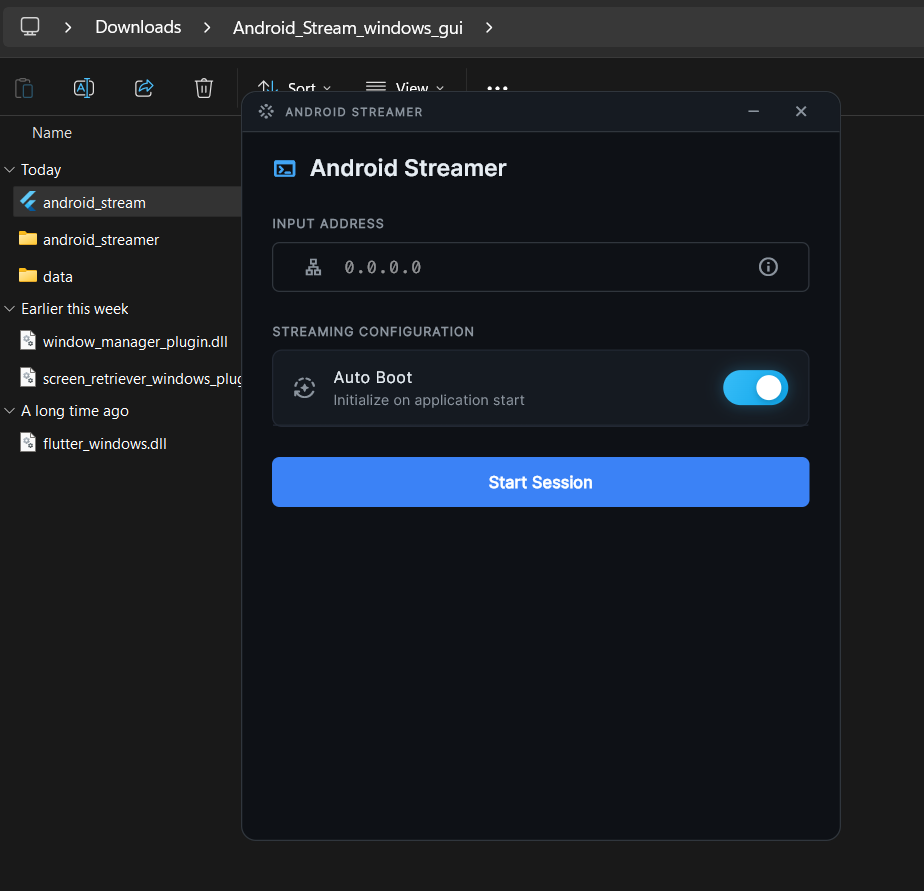
Enter IP & Start Session
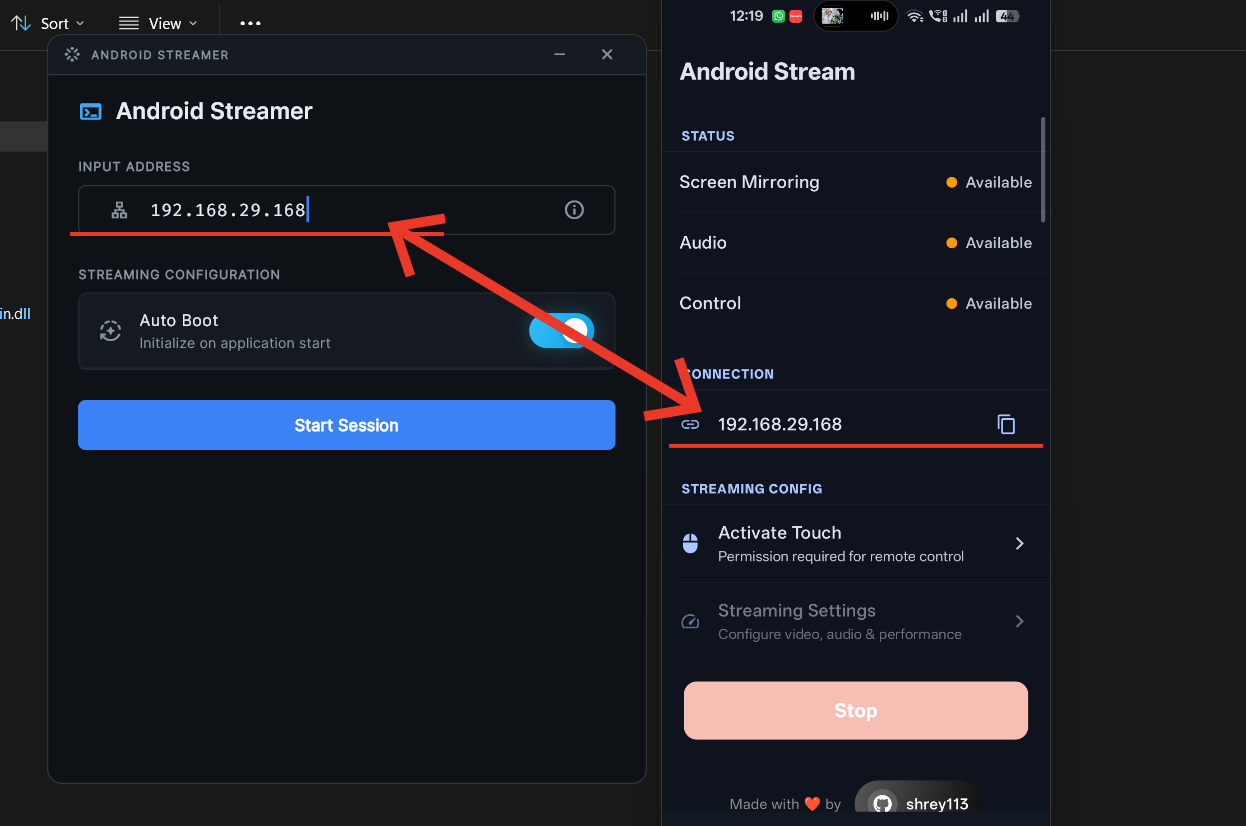
Open the Android Stream app on your phone and copy the IP address shown under Connection. Paste it into the Input Address field in the GUI, then click Start Session — your phone's screen will mirror instantly.